¶ SentinelOne Upgrade Process.
¶ Options for upgrading SentinelOne Assets
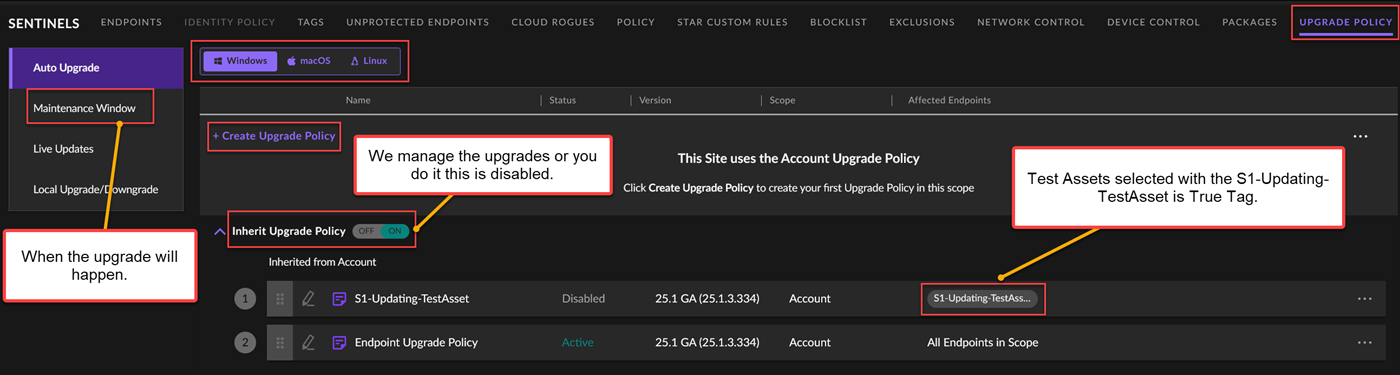
¶ Let Secure-ISS manage the process.
With this process, we will be handing the cutover date and package when the upgrade process starts.
However, the responsibility for choosing the Test Assets, monitoring them, and disabling the Upgrade Policy if any issues are found is yours.
We will not know unless you tell us, so please ticket soc@secure-iss.com.
You will need to complete the Test Assets section.
You will need to set up the Maintenance Windows Settings or use the default settings. The Maintenance Windows Settings determine when the agent packages will be rolled out to your endpoint. Remember to have dates and times when endpoints are online.
You will need to enable the Upgrade Policy to Inherit when you have completed the Test Asset section.

¶ Manage your own upgrade process
You will need to set up the Maintenance Windows Settings or go with the default.
This is when the agent packages will roll out on your endpoint. Remember to have time when endpoints are online.
You will need to disable the Upgrade Policy to Inherit.

We recommend you follow the same process as the Test Assets process below.
¶ Test Assets
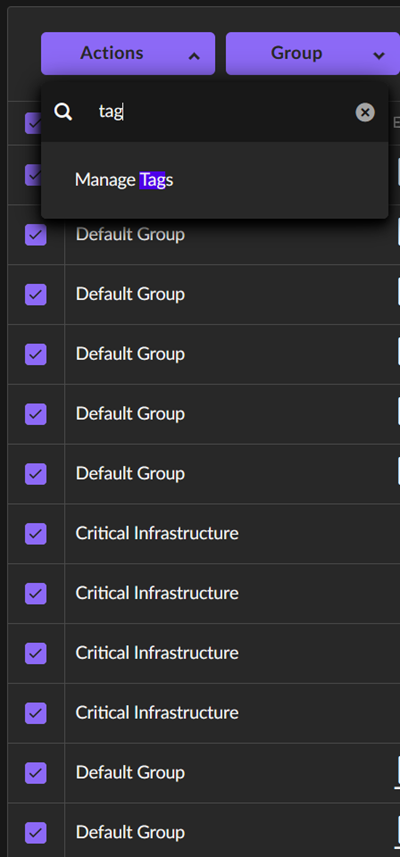
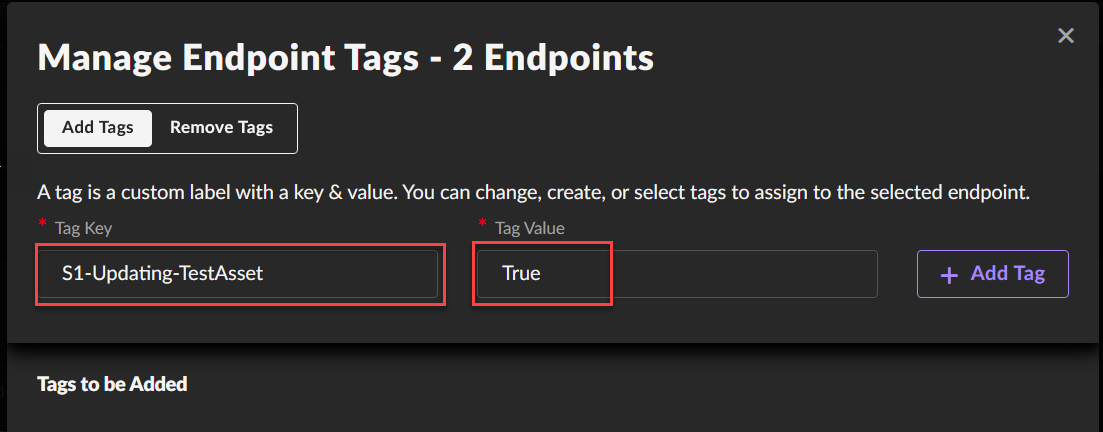
Add the following tag (S1-Updating-TestAsset) through tag management.
Add a variety of endpoints, some of the following: DCs, SQL, Data Servers, IIS Servers, Development Servers, and a good number of User endpoints.
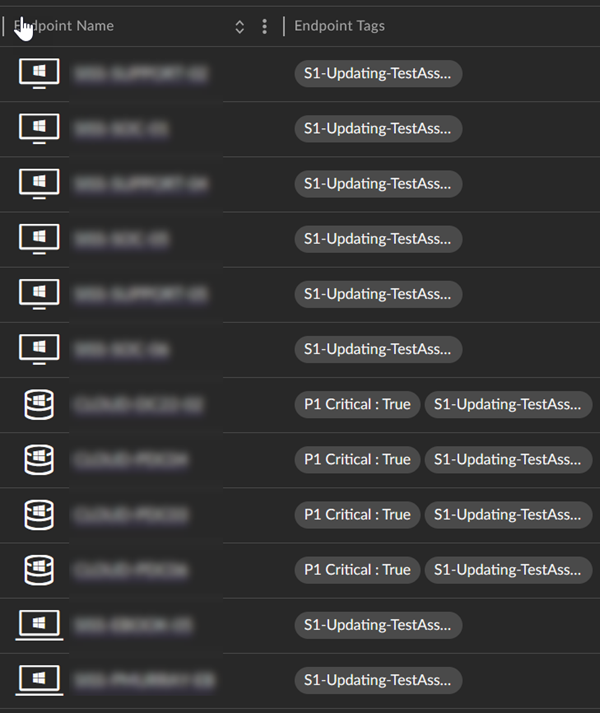
We recommend you have one of every duplicated server, operating system and configuration.
¶ Selecting Test Assets
Manage Tags
¶ Adding Tags
S1-Updating-TestAsset
¶ When does this start?
If you have chosen to manage the upgrade process yourself, then this is when you enable the Policy.
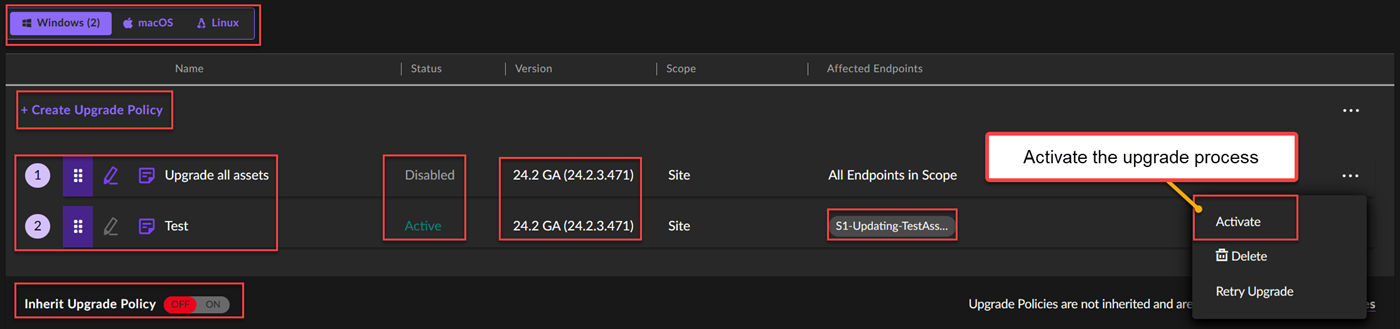
With this process, we will be handing the cutover date and package of when the upgrade process starts, but you are responsible for choosing the Test Assets and monitoring them and disabling the Upgrade Policy if you find an issue.
We will not know unless you tell us, ticket the soc@secure-iss.com.
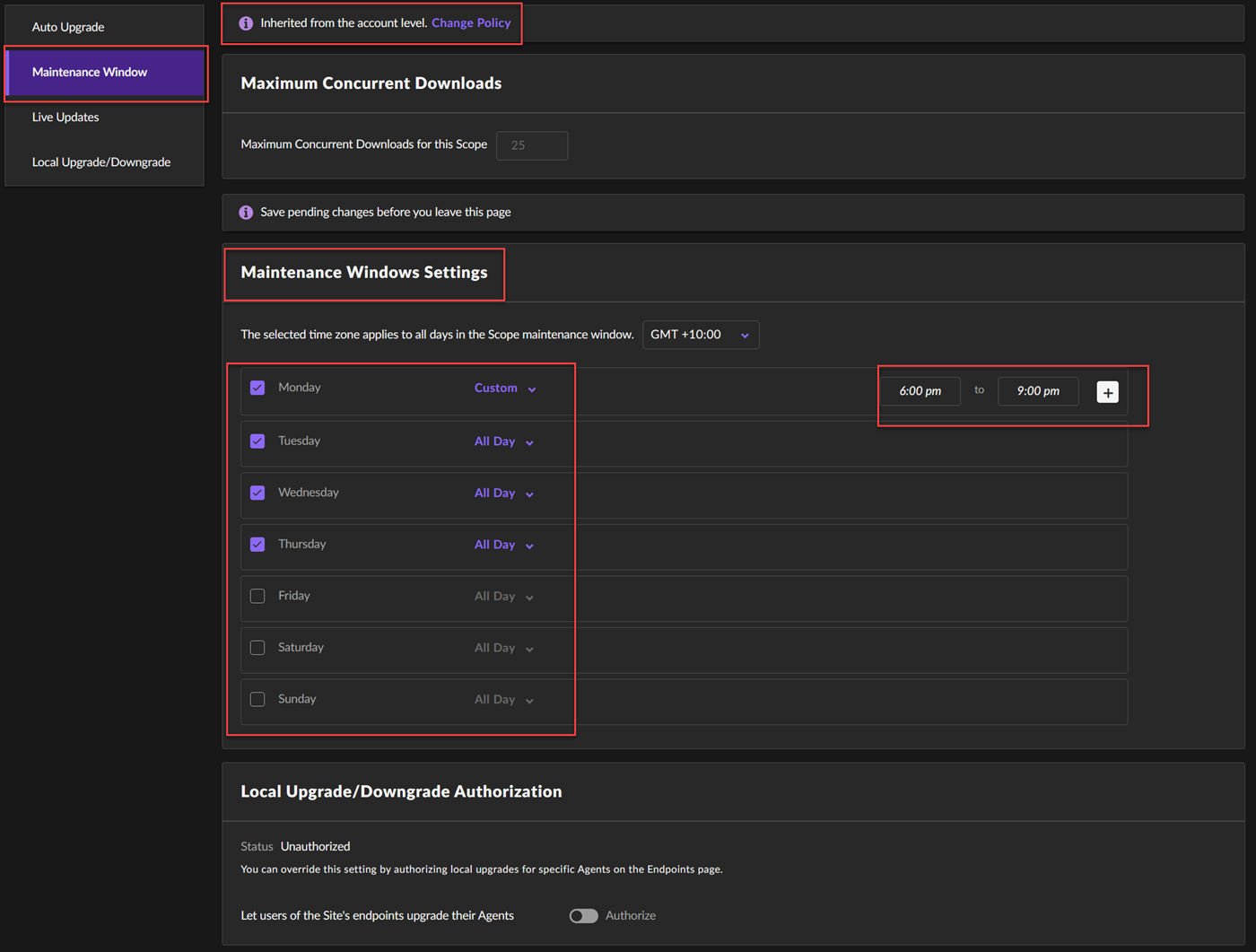
¶ Maintenance Windows Settings
You will need to set up the Maintenance Windows Settings or go with the default.
This is when the agent packages will roll out on your endpoint. Remember to have time when endpoints are online.
¶ Reviewing the process.
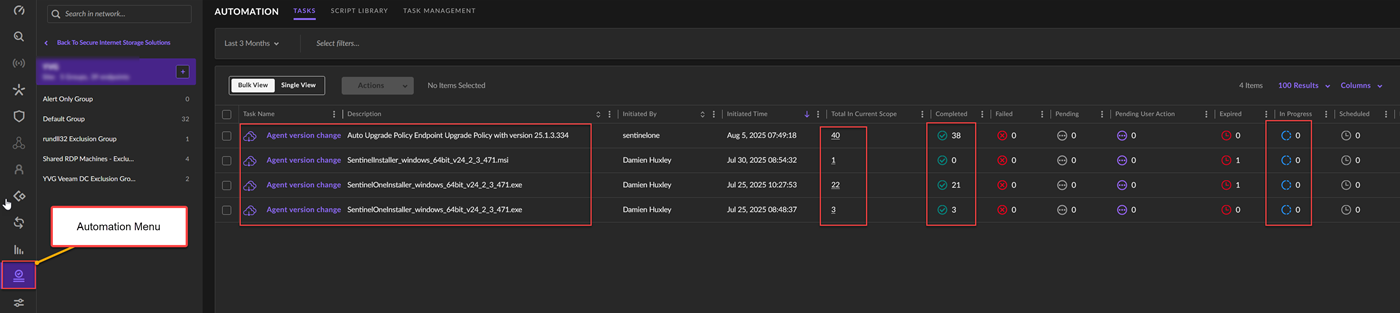
To review where the process is at, have a look at the Automation menu item.
If the Maintenance Windows Settings are active, you will see something like the following.